When we released our Umbraco package in September, every login or password it caught using stolen credentials raised a notification your developers could handle in code: email the security team, lock the account, open a ticket. That works, but it puts the response in the hands of whoever can write and deploy C#. The people who usually own the response, a site owner, a digital team, an agency account manager, had to ask for it.
Umbraco Automate changes that. Umbraco's new automation add-on gives Umbraco 17 a visual canvas for building automations from triggers and actions, inside the backoffice. Today we are releasing a small add-on that plugs DarkStrata into it: DarkStrata.CredentialCheck.Umbraco.Automate adds a Compromised Credential Detected trigger to the Automate canvas. When someone logs in or sets a password that DarkStrata has already found in infostealer logs, your automation runs. You build what happens next by picking actions, not by writing handlers.
See It in Action
The video below walks through the whole thing on a real Umbraco 17 site, from an empty canvas to the email landing in the security team's inbox.
What Happens on Every Login
Nothing about the check itself has changed. When a member or backoffice user logs in, or sets or changes a password, the DarkStrata package hashes the email and password on your server and sends only a short prefix of that hash to DarkStrata. The final comparison happens on your server, so DarkStrata never sees the email, the password or the full hash. If the pair is in the stolen credentials DarkStrata collects from infostealer logs and other criminal sources, the login is refused like a wrong password, or allowed with a warning if you have chosen to observe first.
Either way, the package now fires the Automate trigger. That is the only new moving part, and it is what turns a detection into a workflow.
Building the Workflow
Here is the automation from the video, step by step. It takes a few minutes.
- Install the add-on with
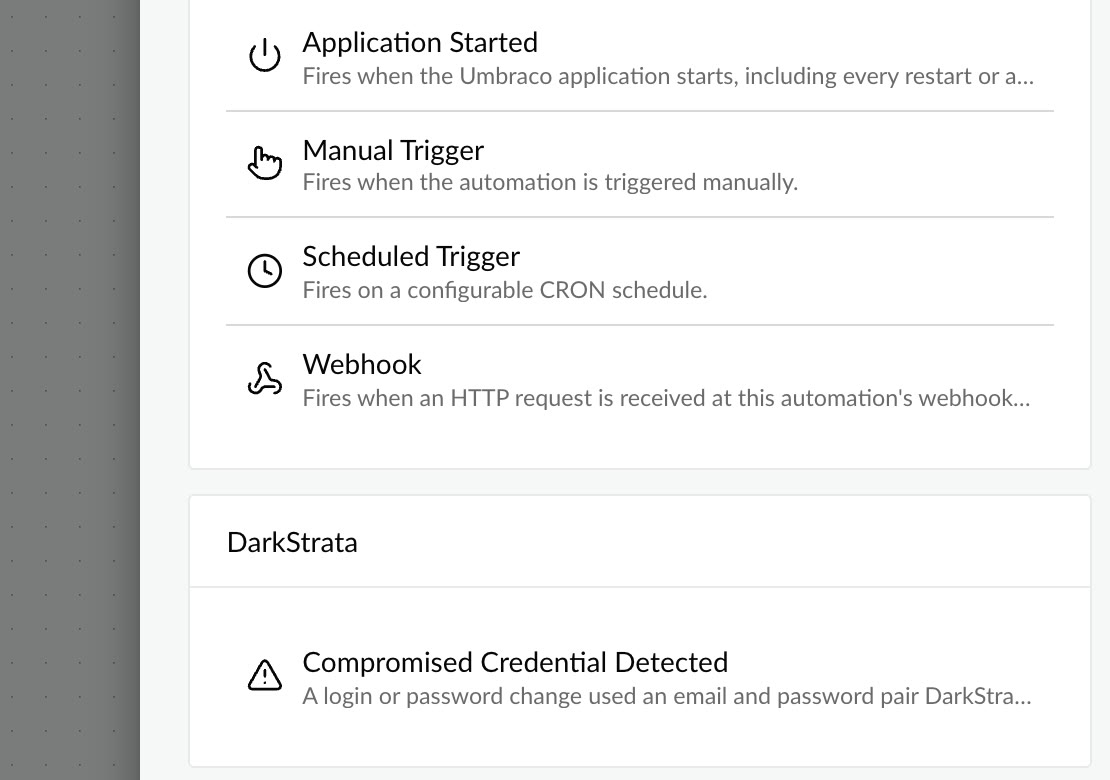
dotnet add package DarkStrata.CredentialCheck.Umbraco.Automateand restart the site. It brings the main DarkStrata package with it if you do not already have it. - Create an automation in an Automate workspace and choose Add trigger. The package adds a DarkStrata group to the trigger picker.
- Pick Compromised Credential Detected and choose which events you care about: member or backoffice logins, member or backoffice password changes, or leave it empty for all four.
- Add an action. Anything Automate offers works: Send Email, an HTTP Request to your ticketing system or SIEM, Notify Editor, or an If step that branches on where the hit came from.
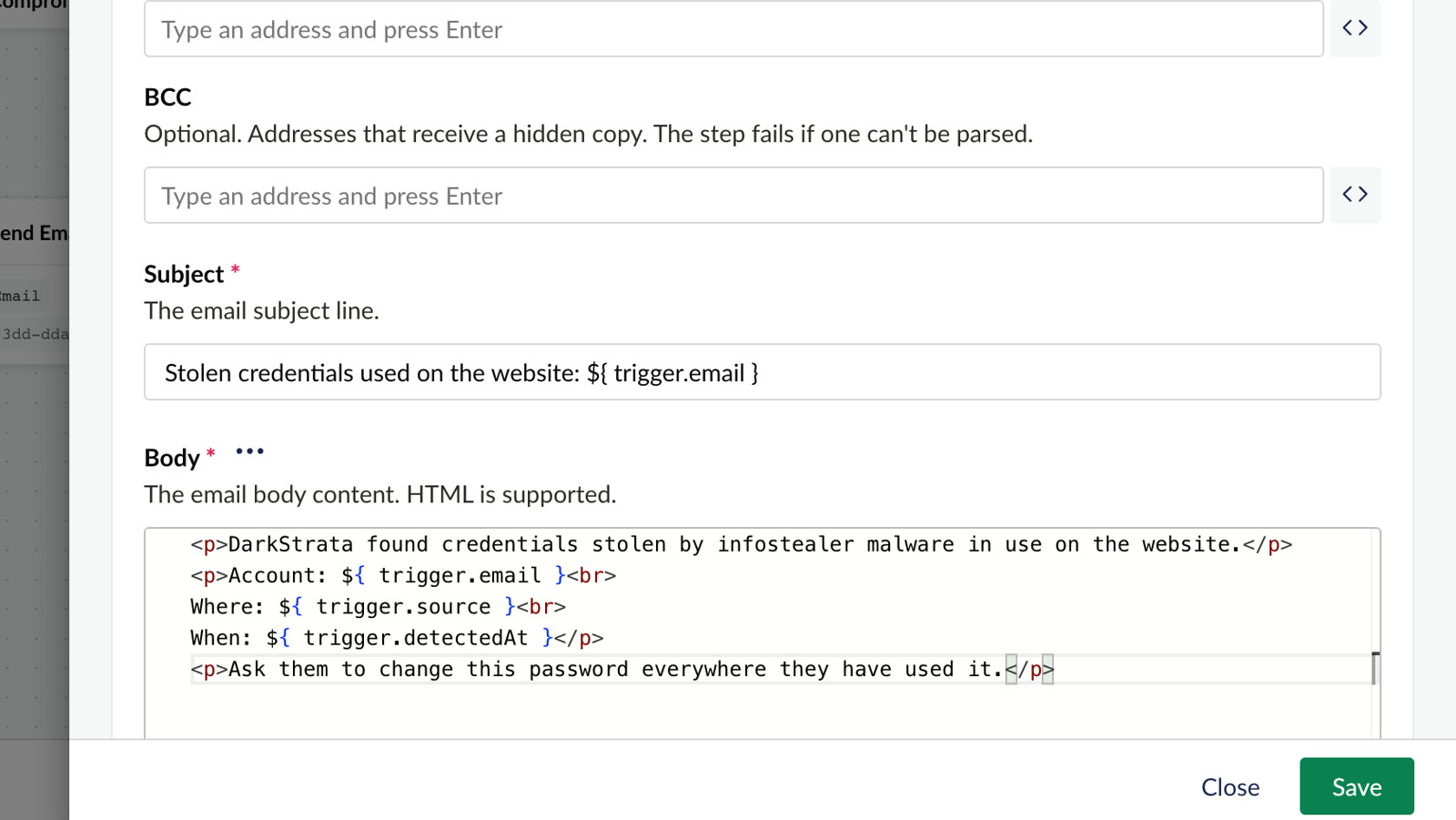
- Use the trigger data in the action's settings, then Save and publish.
What the Trigger Gives You
Every run carries four values you can bind into any action that accepts bindings:
${ trigger.source }: where the hit came from, one ofMemberLogin,BackOfficeLogin,MemberPasswordorBackOfficePassword.${ trigger.email }: the email of the member or backoffice user.${ trigger.userId }: their Umbraco identity id, when known.${ trigger.detectedAt }: when the hit happened, in UTC.
In the video, those values go straight into the subject and body of an email to the security team. The same bindings work in an HTTP Request body, so you can post the hit to your ticketing system or a chat webhook in the same way.
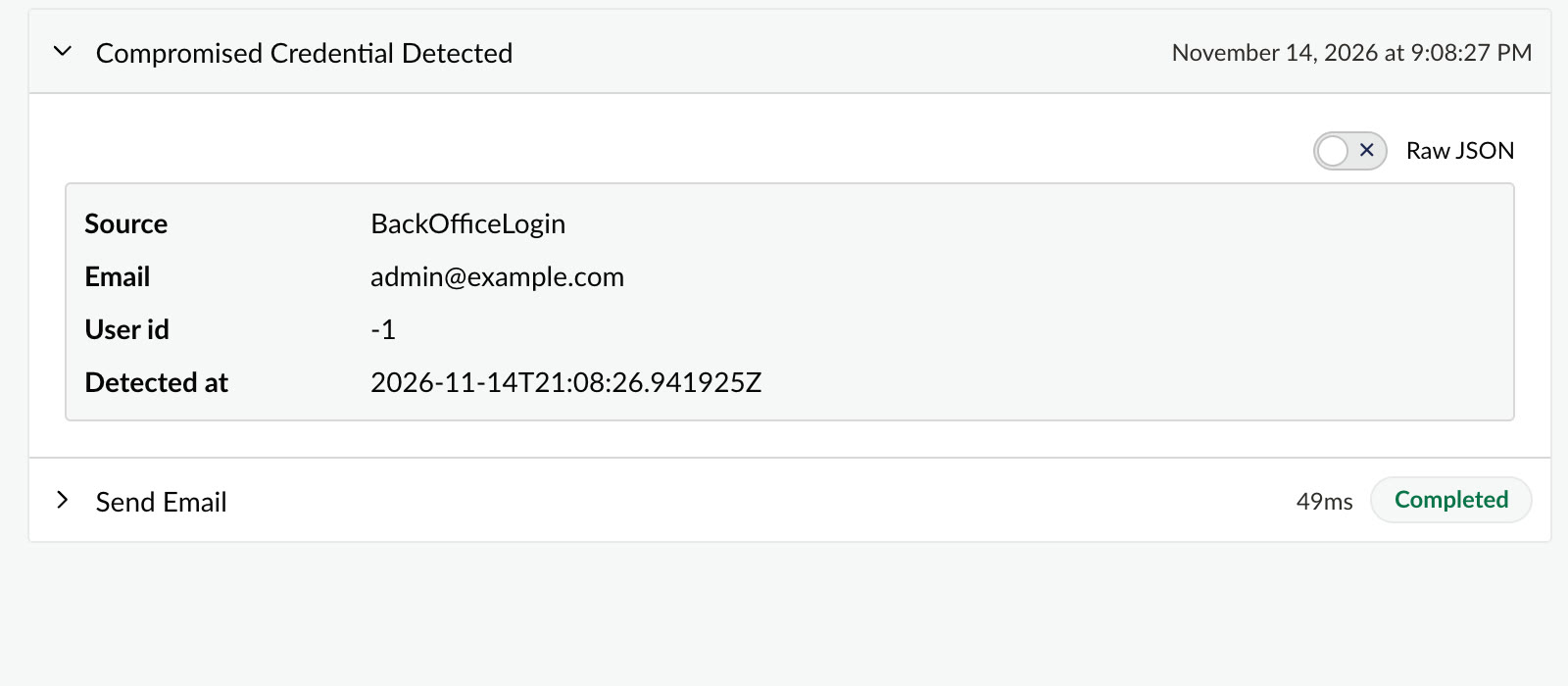
Each run is recorded in Automate's run history, with the trigger's values and each step's result. That gives you an audit trail of what was detected and what your site did about it, without building one.
Built to Stay Out of the Way
A login form is the worst place for a workflow engine to slow things down, so the add-on and the package around it were built with that in mind.
- Bursts do not flood you. Hits for the same user and source start at most one run in each five-minute window. A bot hammering one account with a stolen password produces one alert per window, not hundreds.
- A slow workflow cannot stall a login. If Automate's database is slow or unavailable, the login result stands and the check stops waiting after a short timeout (five seconds by default, configurable as
NotificationTimeout). A slow write finishes in the background, and a failed one is logged rather than shown to the person signing in. - Know what you are storing. Automate keeps trigger values in its run history, so emails and user ids are stored there. Apply the same retention and access rules you use for other personal data. Passwords and hashes are never part of the output.
Requirements
The add-on needs Umbraco 17.4 or later with Umbraco Automate 17, on .NET 10. Automate 18 needs Umbraco 18, which the DarkStrata package does not support yet. On Umbraco 13, 15 and 16 the main package works as before, and the notification is still there for a few lines of code to pick up.
Get Started
The add-on is free and open source under the Apache 2.0 licence, like the package it builds on. Checks against DarkStrata's stolen-credential data need a plan that includes Credential Check.
- Install from NuGet
- Set up the main package with the Umbraco documentation
- Learn more about building automations in the Umbraco Automate docs
- Browse the source on GitHub
- Sign in to create an API key
Catching a stolen password is half the job. Now the response can be built by the people who own it.